


If you’ve been running your books in Excel for a while, you’re not alone. Most small businesses start this way because it feels simple, flexible and convenient. But as the business grows, those same flexible, convenient and simple sheets start to hinder your workflow and impede clarity. To rectify this clarity, you go from one tab to 5 tabs. Maybe one file links to another file and you can’t remember which one is the real one. Perhaps, someone mistypes a date and suddenly half the formulas collapse. You even try to sort a column and accidentally drag one cell out of alignment and poof, now your income totals make no sense. All this, ironically happens right when you need clean numbers the most, like during tax season or when a lender asks for financials.
See Excel is still great for lots of things, but long-term bookkeeping isn’t one of them. At some point the risk of human error, the time you spend just cleaning up data, and the stress of wondering if your numbers are actually right all start to outweigh the comfort of working in a spreadsheet.
This is the point where most people start looking for an alternative to Excel and usually ending up finding QuickBooks Online.
Purpose of the Guide
This guide walks you through the process of moving your bookkeeping from Excel to QuickBooks. It will provide the actual steps that reduce mistakes, protect your data, and help you set up QuickBooks from Excel seamlessly.
You’ll learn how to clean up your spreadsheets, import them properly, verify everything, and avoid the habits that make bookkeeping harder than it needs to be.
The goal is to help you migrate Excel into Quickbooks without stress, confusion, or wasted time.
Quick Summary of What You’ll Learn
Before we get into the details. Here is a summary of the things you will learn:.
- You’ll learn why moving from Excel to QuickBooks is worth the effort.
- See how to prepare your Excel data so it imports cleanly and correctly into Quickbooks
- We’ll walk through the import process step by step and talk about the spot checks you need to run afterward.
- You’ll also learn how to troubleshoot the common mistakes during migration.
- Learn a few habits that keep your new QuickBooks file accurate and easy to maintain.
By the time you reach the end of this guide, you’ll know exactly what to do, what to avoid, and how to make QuickBooks work for you instead of adding more stress to your week.
Why Move From Excel to QuickBooks
The Limitations of Bookkeeping in Excel
Let’s be honest. Excel is amazing at a lot of things. You can build anything from a simple expense tracker to a complicated forecasting model if you’re willing to tinker long enough. But as a long-term bookkeeping system, it starts showing cracks pretty quickly. There are 6 reasons why excel is not ideal for bookkeeping. These 6 can be summarized as:
- Data entry issues
- Data file version control
- Accounts receivable and payable tracking
- Limitation to growing data
- Lack of integrations
Data Entry Issues
The first issue is data entry. Every transaction in Excel depends on you typing something correctly. This means that any wrong data entry, especially if formulas are involved will suddenly affect your income statement and other data points.
Data File Version Control
Then there’s version control. With Excel, you have to create a new file for every bookkeeping year. Overtime, you can have a But anyone who has tried to keep a year’s worth of financials in Excel knows the pain of files named something like “Bookkeeping 2024 – FINAL – USE THIS ONE – updated actually final.” You email it to someone, they change the name, send it back and you have to update it again. It can be annoying.
Tracking accounts receivable and accounts payable
Tracking accounts receivable and accounts payable is another headache. In Excel, you might have tabs for invoices, bills, payment status, due dates, and maybe a separate sheet for customers who owe you money. But overtime this can be overwhelming as your business grows. It works until it doesn’t. Miss an update and your whole system can fall apart. Before long, you’re manually checking bank statements to figure out who paid and who still owes you.
Limitations of Growing Data
As your business grows, you find yourself needing more rows, and formulas. This in turn, can promote places for errors. With no real way to promote automatic data entry, you also bear the burden of spending hours entering countless data when you should be using that time to grow the business.
Lack of Integrations
The last pain point is the lack of integration. Excel doesn’t connect to your bank, payment processor, invoicing app, or other software tools. This means that you’ll be stuck downloading CSVs and manually pasting transactions every month. If you’re small, it won’t feel like much, but as your business grows, it adds hours you don’t really have.
In summary, Excel works, but it can work against you as your business grows.
The Benefits of QuickBooks Bookkeeping
QuickBooks exists to solve almost every pain point you just read. it removes the friction that makes Excel a poor bookkeeping software, which is the ability to handle large data once your business hits a certain size.
For starters, QuickBooks automates the parts of accounting you probably shouldn’t be doing manually anymore. It pulls transactions directly from your bank accounts and uses rules to categorize certain expense or income. Overtime it can learn the patterns and basically do the bookkeeping for you.
Another benefit is real-time bank feeds. Bank feeds basically allow the software to pull transactions from your connected bank. This means that instead of manually entering every transaction, QuickBooks grabs them for you automatically. You just need to review and approve the transactions. It’s a huge time saver and it reduces human error by a lot.
Then there’s reporting. QuickBooks gives you tax-ready financial reports in seconds. Profit and loss, balance sheet, cash flow, aging reports, and all the things your accountant keeps asking you for and ready in a few clicks. In Excel, you’d have to build each report yourself and hope the formulas are still intact.
Another underrated benefit is the audit trail. QuickBooks keeps a clear record of who changed what and when. If someone accidentally edits an invoice or changes an amount, you can see it. That level of accountability simply doesn’t exist in Excel.
A fifth benefit is multi-user access. You can have your bookkeeper, accountant, and team working together without passing a file around. You control what each person can see or edit. It’s cleaner and, honestly, safer for your financial data.
All these benefits are intentional and are strategically made to tacking the drawbacks of Excel as your business grows.
How To Know When It’s Time To Switch from Excel to Quickbooks
Some people switch to QuickBooks because it simply cannot accommodate their business. Others switch before anything breaks. Either way, there are a few signs that usually mean it’s time to switch from Excel to Quickbooks.
Here are a few signs to let you know it is time to switch from Excel to Quickbooks:
- Your business handles large data volumes.
- You are ready to hire a bookkeeper
- You’re preparing financial statements for investors or lenders
- There’s the moment when manual tracking of bills, invoices, and expenses just becomes too much.
Most people wait too long. But once they switch, they realize how much time they were wasting on tasks that QuickBooks handles automatically.
Pre-Migration Planning and Preparation
Before you migrate from Excel to Quickbooks, there are thing you need to do to prepare your Excel files. This section will discuss what you need to do to prepare your excel file for migration.
Cleaning Up Your Excel Files Before Migration
If you’ve made up your mind to migration from Excel to Quickbooks, you need to clean your excel files before you migrate them. Cleaning your Excel data makes the migration more seamless and reduce the risk of mistakes after your data is migrated.
To start with the data cleaning, start with your dates. Inconsistent date formats, make it hard for the data to upload. It is best to pick one format and stick with it.
Next, look at your customer names and vendor names. Make them consistent. If you wrote “Home Depot,” “HomeDepot,” and “Home Depo” in the same sheet, correct this to a more consistent name. Otherwise, QuickBooks is going to treat those as three separate vendors.
After look for and delete duplicate transactions as well as negative amounts that sometimes appear when you accidentally reversed something. Clean them up so they reflect reality.
Make sure all transactions are correctly categorized and bank statements have been reconciled. You should have a clean set of books before the migrations. Even if you’re not totally sure which expense category is perfect, pick something reasonable. You can always adjust later, but it’s hard to fix a pile of undefined entries and unreconciled bank statements once they’re already inside QuickBooks.
This cleanup step takes time, but the more thorough you are here, the smoother and cleaner your QuickBooks bookkeeping migration be.
Deciding What Financial Data To Migrate
Fortunately, you don’t need to migrate every data point from your excel into Quickbooks. Depending on your gaols, there are a few crucial data points to migrate and a few others you can skip. Here are a few data points you can decide to migrate.
- If you’re trying to keep things simple and you don’t care about detailed history, you can migrate opening balances only from your balance sheet and profit loss statement. This means that QuickBooks will have the numbers just before the migrations so you can quickly and easily continue the bookkeeping.
- If you want a clean year in QuickBooks, you can wait until the end of the fiscal year to migrate year end numbers from the previous fiscal year. This gives you accurate year-end reporting inside the software.
- If you want your books fully up-to-date, migrate year-to-date transactions. This is probably the most common option for small business bookkeeping.
And if you really want everything in one place, you can migrate all your historical data. Some people love having multi-year history in QuickBooks. Others find it makes the import messy. There’s no rule here, but be honest with yourself about how far back you actually need to look.
When in doubt, bring less history. It keeps things cleaner and easier to review.
Setting Up Your QuickBooks Account (Before Importing Data)
Creating Your Company File
Once your Excel sheets are cleaned up and you know what you’re migrating, the next step is setting up your QuickBooks company file.
Open QuickBooks and walk through the setup screens. Enter your business name exactly how it appears on your legal documents. Don’t overthink this part, but don’t wing it either. If your business has a legal name and a trade name, use the one you actually file taxes under. Same with your address, industry type, and contact details. These little pieces of info feed into reports and forms later.
Next, set your fiscal year. Quickbooks allows you to set your fiscal year as the month after the end of your fiscal year end month. So if you fiscal year end is December, the you should put January as your month after the fiscal year end. QuickBooks will build your reporting calendar around whatever you choose, and getting it wrong means your reports may be wrong.
After that, choose your tax settings. You can do this using the sales tax module. Are you charging sales tax? If you’re not sure, this is a good time to pause and ask your accountant or bookkeeper. Making a guess here can create small but annoying problems later. And yes, you can change some of these settings after setup.
Take your time. Click slowly. This company file is going to be the home base for your bookkeeping for years, so give it a solid foundation.
Building or Reviewing Your Chart of Accounts
Your chart of accounts is the backbone of QuickBooks. It’s the map that tells the software how to categorize everything your business does. In includes income, expenses, assets, liabilities, equity. All of your transactions funnels into these accounts.
QuickBooks will suggest a default chart based on your industry. Some of it may fit your needs while others may be generic or irrelevant. Don’t assume QuickBooks knows your business better than you do. Review every account and ensure the items in the accounts, fit your needs. If something doesn’t apply to your business, archive it. If you need an account for equipment rentals or subcontracting or online advertising or whatever else you track, create it.
Then line up your Excel categories with your QuickBooks chart of accounts. This part feels a little tedious, but it’s important. If Excel calls something “Marketing” but QuickBooks calls it “Advertising,” decide which one you prefer and make everything consistent. The goal is to eliminate guesswork when you import your files.
One mistake I see constantly is people creating way too many accounts. Every new subscription becomes its own category. Every project gets its own income line. Before long, the chart of accounts has 75 items and no one understands half of them. Keep it clean. Broad categories are your friend. You can always drill deeper with tags or classes later.
Setting Your Accounting Method
QuickBooks will ask whether you want to run your books on a cash basis or accrual basis. This isn’t a random preference. It dictates how QuickBooks recognizes income and expenses in your reports. A cash-basis business records things when money actually moves. An accrual-basis business records things when they’re earned or owed, not when cash hits the bank.
If you’re not sure which one applies to you, think about how you file taxes. Most small businesses file on a cash basis. Some industries or larger businesses use accrual. QuickBooks can toggle between the two when running reports, but choosing the right method now makes your defaults much easier to understand.
It also affects how you migrate your Excel data. For example, if you plan to import unpaid invoices or outstanding bills, those matter more on an accrual system. If you only care about cash activity, your setup will look different.
This is one of those decisions that sounds technical but really shapes how QuickBooks behaves every day. Get it right at the beginning and your reports will finally make sense in a way Excel couldn’t deliver.
Configuring Company Preferences
This is the part of QuickBooks setup that feels slightly less glamorous but somehow determines half your daily bookkeeping experience.
Start with your invoice and estimate templates. QuickBooks gives you basic layouts. You can tweak the design, add your logo, adjust the wording, and choose how detailed you want them to be. If you skip this now, you’ll end up sending your first invoice and thinking it looks like something you made in high school.
Set your payment methods. If you accept credit cards, ACH, or online payments, enable those options so they show up on your invoices. Turning this on early usually gets you paid faster.
If your business charges sales tax, set it up carefully. Pick your tax agency, your tax rate, and how you want QuickBooks to handle tax reporting. Sales tax setup is one of those areas where people take shortcuts and then spend hours fixing things later. Do it properly the first time.
Last, review your user permissions. If you’re the only one using QuickBooks, great, this is simple. But if you have a bookkeeper, accountant, or team members who need access, set their roles and permissions now. You can allow someone to enter transactions without giving them access to sensitive information like payroll or banking. QuickBooks is pretty flexible, so you can shape it exactly how you want.
These preferences don’t make headlines, but they quietly determine whether QuickBooks feels like a helpful tool or an annoying one.
Enabling Integrations
QuickBooks starts working its magic once it connects to the rest of your business. This is where everything begins to automate.
Start by linking your bank and credit card accounts. QuickBooks pulls in your transactions automatically, which saves you from copying and pasting or uploading CSVs every week. The first sync is always a little nerve-wracking, but after that, it’s surprisingly smooth.
If you run an online store or accept payments through Stripe, Square, PayPal, or a POS system, connect those integrations too. This keeps your sales data synced and prevents double entry. I’ve seen people wait months before turning these on, and they end up recreating the same work they already paid a system to automate.
You can also connect time tracking apps, payroll tools, inventory systems, CRM platforms, and other software you rely on. Don’t integrate everything at once. Start with the essentials: banking, payments, and sales channels. Once you see how QuickBooks handles them, you can connect the rest without fear of breaking something.
What this really means is QuickBooks becomes your financial hub, not just another tool. Once the integrations are turned on, you stop living in spreadsheets and start running your business with real data that updates itself.
Importing Your List Data Into QuickBooks
Once your spreadsheets are cleaned up and your QuickBooks file is ready, the real work begins. This is the part people tend to overcomplicate. Importing data into QuickBooks feels scary only because the stakes are high. You’re moving the financial history of your business into a new home. But if you follow a logical order and slow down at the right moments, the process becomes almost boring. And boring is good when it comes to bookkeeping.
Let’s break it down step by step so you understand not only what to do but also why the order matters.
Follow the Correct Import Order
The order in which you upload your data matters. This allows Quickbooks to effectively communicate with all the data seamlessly. If you mess up the order, you’ll get strange errors or end up with invoices that don’t know which customer they belong to or incorrectly categorized transactions..
So the best import sequence for accuracy looks like this:
- Chart of accounts
- Customers
- Vendors
- Products and services
- Invoices
- Bills
- Payments
- Bank transactions
How to Import Lists Into QuickBooks
Before you deal with transactions, you need to bring in the static lists. These include: customers, vendors, chart of accounts, products, services. The nice part is that importing lists into QuickBooks Online is fairly forgiving if you prepare your CSV files correctly.
Step 1: Navigating the Import Tools. Click the gear icon and click import data. Then choose the data you wish to import. Each data you import has sample files. Ensure the data you import matches the column heading of your sample file.
Step 2: Mapping Columns to QuickBooks Fields. This is the moment where accuracy pays off. QuickBooks will try to guess which of your spreadsheet columns belong to which internal fields. Sometimes it gets it right. Sometimes it’s wildly wrong. Don’t just click continue. Look at each mapping and make sure the program is interpreting your data the way you intended.
Step 3: Review Before Confirming the Import. Treat the preview screen like as a way to double check your data. Scan it for weird spelling mistakes, extra commas, misplaced categories, or anything that feels slightly off. Trust your instincts. If something looks wrong now, it will definitely be wrong after the import. And removing bad data from QuickBooks takes more time than stopping to fix the spreadsheet.
Importing Transactions Into QuickBooks
Once the lists are in, you’re ready for the real migration: invoices, bills, payments, and bank transactions. This is where the process gets more sensitive, because each transaction connects to something else.
Handling Invoice Numbers
If you’ve been tracking invoices in Excel, your numbering system might not be as consistent as you think. QuickBooks assumes you want to continue your numbering, but it won’t allow duplicates or gaps that violate its rules. Before importing, clean the invoice numbers so they follow a predictable sequence. You’ll save yourself from a long list of rejection errors.
Linking Payments to Invoices
This is where things can get messy. Payments in Excel often lack a clear reference to which invoice they belong to. QuickBooks doesn’t guess. It wants a direct match. If your import files don’t specify the invoice number, date, amount, and customer, QuickBooks can’t connect the dots.
Take the time to fill in missing invoice references. Yes, it’s tedious. But it’s also the best way to avoid a stack of unallocated payments that you’ll later have to match manually.
Matching Vendor Bills and Payments
The logic here is the same as with sales. Vendor bills need unique identifiers, and the payments must match those identifiers. If you don’t include bill numbers or you use inconsistent naming, QuickBooks will either reject the import or create duplicate vendor records. Better to fix the inconsistencies in Excel before moving anything.
Bank Transaction Imports vs Bank Feed Sync
A lot of people wonder whether they should import old bank transactions manually or let the bank feed handle it. The honest answer depends on your history.
If your bank feed only brings in the last 90 days and you need several years of data, you’ll have to import older transactions by CSV. But if the goal is simply to start fresh from this month forward, skip the import and connect the bank feed instead. It’s cleaner, and QuickBooks will handle the categorizing.
Troubleshooting Common Import Errors
After you import, you may hit errors and that’s normal. Quickbooks is not designed to fit Excel perfectly so you data may not import perfect. Good news is that there is always a way to fix this. The key is knowing what to look for. Here are a few import errors that can arise from migrating Excel bookkeeping files into Quickbooks.
Unmapped Fields
This usually means QuickBooks doesn’t understand one of your columns from your import. Maybe the category you imported was not in Quickbooks. Or perhaps the formatting is inconsistent. Typically this error will come up before you upload your Excel file. Take note of the unmapped field error and fix the error in the original excel file. Reupload once fixed.
Duplicate Entries
Duringthe import, you can select settings to prevent Quickbooks from uploading duplicates. This includes telling Quickbooks to not createnew items during the upload. If you still end up with duplicate entries. You can also delete or exclude them from Quickbooks later on.
Unbalanced Transactions
QuickBooks needs debits and credits to equal each other. If your legacy Excel file uses formulas or partial entries, QuickBooks might read them as incomplete. Double-check your totals and rounded. If you are uploading journal entries, ensure debits equal credits.
Missing Accounts
If you try to import a transaction tied to an account that isn’t yet in your chart of accounts, QuickBooks throws an error. This is why the import order matters so much.
Currency or Date Format Issues
Excel can be tricky here. A date that looks like May 4 in your spreadsheet might turn into April 5 during the import if the format isn’t set correctly. Set all dates to a single format before importing. Use plain text for foreign currency symbols.
Verifying That Your Import Worked
Once everything is imported, take a breath. Then confirm that QuickBooks reflects your actual business reality. This is the step people rush through, but it can save you from huge problems later.
Review Sample Records
Don’t dive into every transaction. Pick a handful across different periods. Check them against your original spreadsheets. Confirm that names, dates, amounts, and categories came through correctly.
Sometimes you’ll notice small oddities, like extra spaces in names or a vendor that ended up with two slightly different spellings. Fix these early.
Run Key Reports
The fastest way to spot errors is with QuickBooks reports. Look at accounts receivable, accounts payable, your profit and loss statement, and your balance sheet. If the numbers look wildly off, something went wrong in the import.
If they look mostly right but not quite perfect, trace the inconsistencies back to the import files. It’s usually a formatting issue.
Check for Unmatched Transactions
Check for items that are not matched. Payments without invoices, bills without vendors, expenses without categories are a few examples. QuickBooks will allow these data points, but they’ll create pain later when you try to reconcile your accounts.
Take the time now to match and categorize anything that came in incomplete.

Dedicated Bookkeeping Team to help Your Growing Business.
Let’s Connect!
Wrapping Up Excel to Quickbooks Migration Process
Let’s be honest, migrating from Excel to QuickBooks can feel like a big deal at first. You spend weeks or sometimes months building spreadsheets that track everything. You’ve got formulas, tabs, and carefully color-coded columns that you understand but no one else does. And then someone tells you it’s time to move it all into QuickBooks. It’s intimidating.
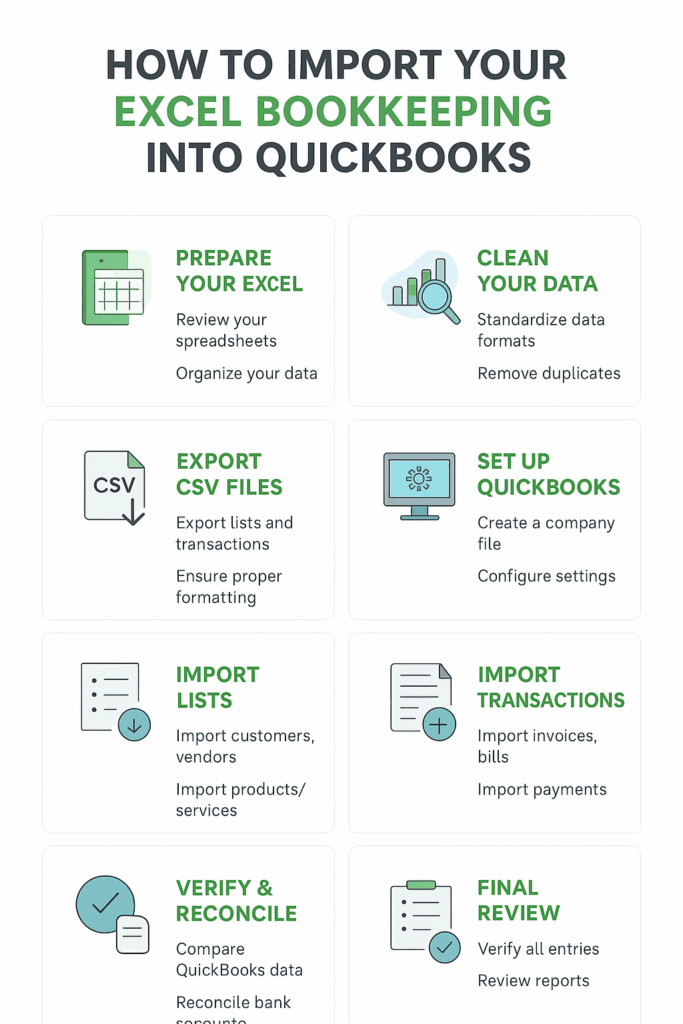
Here’s the thing. The process isn’t complicated if you approach it step by step. You start by cleaning up your Excel files, making sure the data is consistent and accurate. Then you set up QuickBooks in a way that matches your business: chart of accounts, customers, vendors, products, payment methods, all of it. Once that’s done, you import your data carefully, check for errors, and make sure transactions line up. Finally, you reconcile your accounts and put habits in place that keep your books accurate going forward.
What this really means is you’re not just moving numbers. You’re setting up a system that works, a system that grows with your business instead of fighting against it.